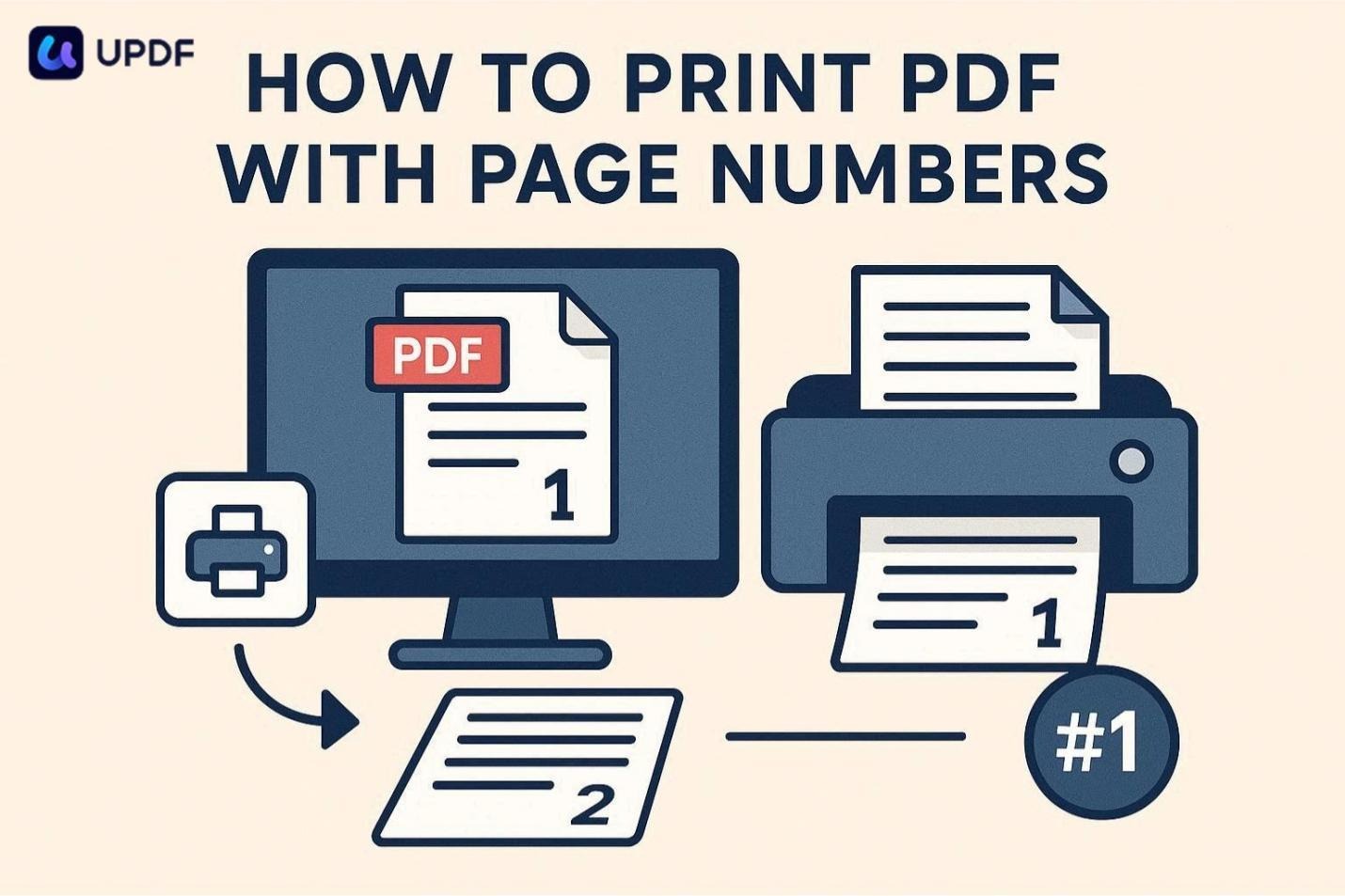
I was about to submit an important report when I noticed the printed pages had no numbers. That’s when I realized how important it is to print a PDF with the page number correctly. Page numbers help me keep documents clear and well-organized. In this guide, I’ll share what I discovered and how it helps. Read to the end to avoid mistakes and print PDFs the right way.
I relied on UPDF whenever I needed a dependable way to handle PDF printing with page numbers without mistakes. It helped me add clear, customizable page numbers before printing, keeping my documents organized. I was able to choose the position, font, size, and numbering style based on my report needs. When accuracy mattered, I trusted UPDF to deliver correct results. I no longer worry about missing numbers or reprinting pages.
Part 2. Steps of How to Print a PDF with a Page Number
Before printing my document, I realized that adding page numbers was a step I could not afford to miss. If you do not know how to use this tool, read the steps provided next:
To print a PDF with page numbers, you must first add page numbers to the document. For this, follow the steps provided next to learn how to add a page number:
To begin, launch UPDF and select "Open File" to import your document.
Once the document is imported, access the "Tools" option from the top-left corner and choose the "Header & Footer" option.
Under the “Page Number” section, select the style for the page number and press “Create.”
Now, acquire the “Properties” panel on the right and press the “Done” button to successfully add the page number to the document.
Once the page number is added, you can now print it in no time. To learn how to do this, read the steps mentioned below:
When the page number is added to the document, head to the top-right corner of the interface and press the “Save” icon. Now, choose the “Print” option from the expanded list and click on it.
In the following window, choose the page range for printing and hit the “Print” button to complete the print with the page number process.
I could customize the font, size, and position to match my document’s style perfectly.
Printing pages out of order or missing numbers was no longer an issue.
Previewing page numbers before printing gave me full confidence in the final result.
UPDF saved me a lot of time by combining page numbering with editing and organizing tools in one place.
Neatly numbered pages made my documents look professional every time.
When I need to print a document with page numbers starting from a specific page, I always use UPDF. It makes the process so simple. If you intend to start the page numbering from a specific page number for printing, the tool makes it exceptionally easy to execute.
Once you are in the “Header & Footer” section for including page numbers, navigate to the “Start Page” option on the right. Here, define the exact number from which you wish to start the numbering from and hit the “Done” button below. Your PDF will be numbered starting from that specific number and in the desired style as defined.
If you want to take full control of your page-numbered PDFs and make your documents look professional, try UPDF’s start page numbering from a specific page feature today.
After using UPDF to print a PDF with page numbers exactly how I wanted, I explored its other features and was impressed. Here are some of the other features that you can use to get complete control over your PDF management:
PDF Editing: UPDF allowed me to edit text, images, and links directly within my PDFs effortlessly.
Annotation Tools: I could highlight, underline, or add comments to emphasize key points in my documents.
PDF Conversion: The tool lets me convert PDFs to Word, Excel, PowerPoint, or image formats without losing quality.
Organizing Pages: This tool enabled me to reorder, rotate, or delete pages to keep my documents well-structured.
Q1. Can you automatically add page numbers to a PDF?
Yes, UPDF allows users to automatically add page numbers to all pages in a PDF at once, eliminating the need to number pages manually.
Q2. How do I set up Print options in PDF?
UPDF provides a range of print options, including selecting page ranges, choosing paper size, selecting orientation, and including or excluding annotations and comments. These settings ensure PDFs are printed accurately according to user preferences.
Q3. Can you save Print settings for a PDF?
Yes, UPDF preserves print settings until they are changed. Once configured, options like page range, scaling, and layout remain saved for future print jobs.
To conclude, this article provided a complete guide on how to print a PDF with page numbers. Using UPDF made the entire process simple, precise, and stress-free. Its flexible features not only helped me print perfectly numbered documents but also gave me control over every detail.
 Supriyo Khan
 Supriyo Khan
 Supriyo Khan
 Supriyo Khan

Want to add a comment?