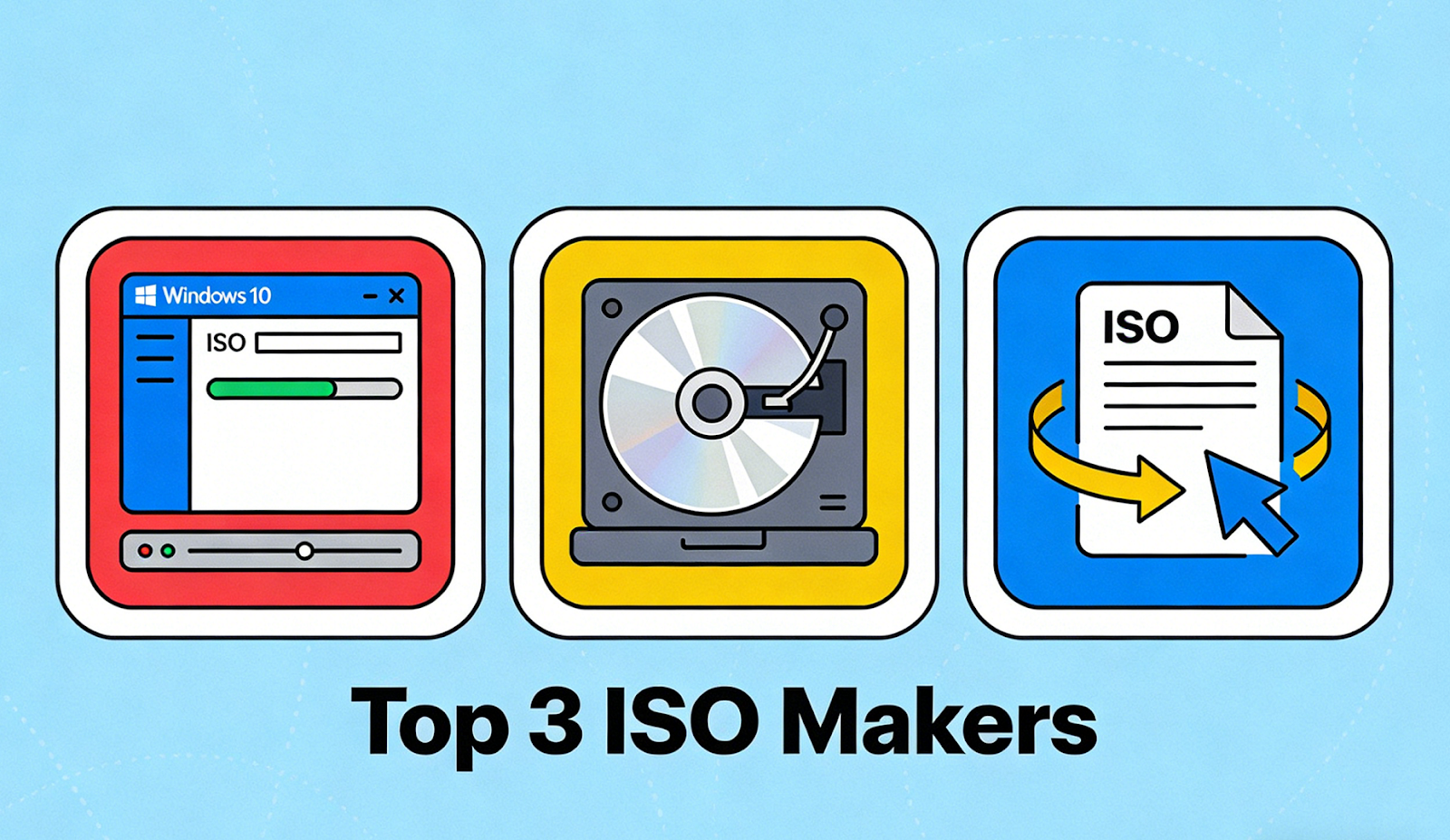
Creating ISO files is still an essential task for many Windows users, even in the age of cloud storage and streaming. Whether you want to back up important data, preserve multimedia projects, create bootable discs, or distribute software in a single, portable format, a reliable iso maker can save time and prevent data loss. With Windows 10 and Windows 11 being the most widely used operating systems today, choosing the right iso creator that works smoothly on modern systems is more important than ever.
This article explores the 3 best ISO creators for Windows 10/11, highlights key features to look for, explains how to create an ISO file step by step, and answers common questions beginners often have. If you’re searching for the best iso creator for personal or professional use, this guide will help you make an informed decision.
An ISO file is a complete digital copy of a disc, stored as a single file. It preserves the original file structure, making it ideal for backups, installations, and sharing. Unlike ordinary folders, ISO files can be mounted as virtual drives, burned to discs, or used to create bootable media.
With the right iso file creator, you can:
Archive DVDs, Blu-rays, or CDs
Create installation media for Windows or other operating systems
Package large projects into a single file
Share disc-based content without physical media
Now let’s explore what makes a good ISO creator on Windows 10 and 11.
Not all ISO tools are created equal. Before choosing a windows 11 iso creator or Windows 10-compatible tool, consider these essential features:
The software should fully support Windows 10 and Windows 11, including both 32-bit and 64-bit systems. Stability is critical, especially when working with large files.
A clean interface and intuitive workflow make a big difference, particularly for beginners. Drag-and-drop support and guided steps help reduce errors.
A good iso creator should handle a wide range of input formats, such as video files, folders, discs, and multimedia content. Output flexibility is also important.
Some tools go beyond basic ISO creation and function as complete disc authoring software, allowing menu creation, customization, and advanced burning options.
Fast processing and reliable burning or conversion speed help save time, especially when dealing with Blu-ray or high-definition content.
If you’re on a budget, a free iso creator may be sufficient. However, paid tools often provide advanced features, better support, and higher output quality.
Based on performance, usability, and features, the following tools stand out as reliable ISO creators for modern Windows systems.
Leawo Blu-ray Creator is a powerful and versatile solution that goes far beyond basic ISO creation. Designed primarily for Blu-ray and DVD projects, it also functions as a professional iso maker for Windows 10 and 11 users.
Create ISO files from videos, folders, and disc projects
Supports Blu-ray and DVD formats with high-quality output
Built-in menu templates with customization options
Supports a wide range of video formats including MP4, MKV, AVI, and MOV
Advanced editing tools such as trimming, watermarking, and subtitle adjustment
Acts as comprehensive disc authoring software for professional projects
Leawo Blu-ray Creator is ideal for users who want more than a simple iso file creator. It’s particularly useful for multimedia creators, educators, and businesses that need polished disc or ISO projects.
PowerISO is a well-known and widely used ISO tool that balances power and simplicity. It supports nearly all disc image formats and works smoothly on Windows 10 and Windows 11.
Create, edit, extract, and mount ISO files
Convert between ISO and other image formats
Create bootable ISO files
Integrates with Windows Explorer
Lightweight and fast performance
Suitable for software distribution and system backups
PowerISO is a solid choice for users looking for a reliable windows 11 iso creator with advanced control over disc images. While the free version has limitations, it still qualifies as a functional free iso creator for smaller projects.
ImgBurn is a classic tool that has earned a reputation for precision and reliability. Although its interface looks dated, it remains one of the most accurate ISO creation tools available.
Create ISO files from files and folders
Burn ISO files to discs with detailed control
Supports a wide range of disc formats
Highly configurable settings for advanced users
Lightweight and completely free
ImgBurn is best suited for experienced users who want a no-frills iso creator with maximum control. It may not be the most beginner-friendly option, but it remains a favorite among power users.
Here’s a simple step-by-step guide using Leawo Blu-ray Creator as an example:
Download and install Leawo Blu-ray Creator on your Windows 10 or 11 PC. Launch the program once installation is complete.
Click “Add Video” or import the files or folders you want to include in the ISO. You can add multiple files at once.
Edit videos if needed, add subtitles, or select a menu template. This step is optional but useful for professional results.
In the output settings, select “ISO File” instead of burning to a physical disc.
Choose a destination folder and click “Burn” or “Create.” The software will generate your ISO file.
Within minutes, you’ll have a fully functional ISO ready for mounting, burning, or sharing.
Always verify available disk space before creating large ISO files.
Use descriptive filenames to easily identify your ISO archives.
Test your ISO by mounting it to ensure it works correctly.
For long-term storage, keep ISO files on external drives or cloud backups.
Avoid multitasking during ISO creation to reduce the risk of errors.
These small habits can significantly improve reliability and efficiency.
Yes, a free iso creator like ImgBurn can handle basic tasks. However, advanced projects benefit from premium tools.
Yes. Many tools, including PowerISO, support bootable ISO creation for operating systems.
An iso maker creates disc image files, while a disc burner writes those files to physical media. Some tools do both.
Yes, as long as you own the content or have permission to create backups.
Choosing the right ISO tool depends on your goals, experience level, and project complexity. For advanced multimedia and professional disc projects, Leawo Blu-ray Creator stands out as a feature-rich iso creator and complete disc authoring software. PowerISO offers a balanced solution for everyday users, while ImgBurn remains a dependable free iso creator for precision-focused tasks.
No matter which tool you choose, a reliable iso file creator can help you preserve data, simplify sharing, and maintain compatibility across systems. With Windows 10 and Windows 11 continuing to dominate the desktop landscape, investing time in the right ISO solution is a smart move for both casual users and professionals alike.
 Supriyo Khan
 Supriyo Khan
 Supriyo Khan
 Supriyo Khan
Want to add a comment?