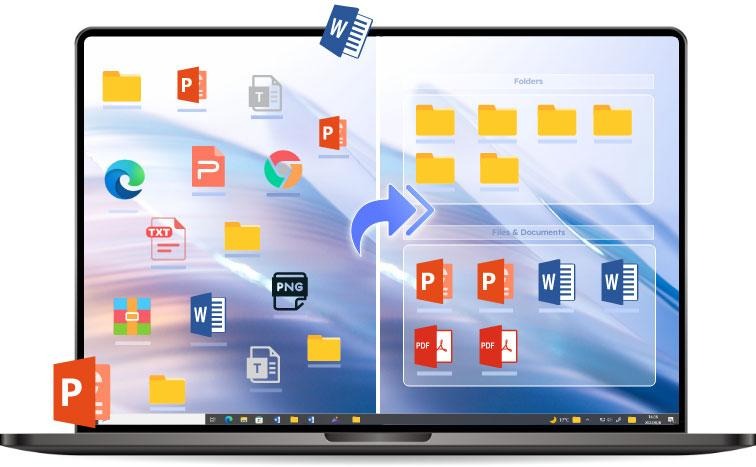
Our computer desktop is the first screen that welcomes us every time we switch on our PC. However, it isn’t uncommon for the desktop to become cluttered as we save files, folders, and downloaded software in a hurry without organizing them in a proper location. It might initially seem manageable when you have fewer files to deal with. Once the number increases, it can be challenging to identify the ones you need. However, you need not worry as iTop Easy Desktop offers a first-hand solution to clean and organize your desktop.
You won't have to waste time scanning through the screen, as it becomes easy to locate your documents.
As you group icons by category, such as frequently used apps, work apps, etc., you can work without distractions. It also enhances file security as you don’t have to worry about misplaced documents.
A cluttered screen is often linked with increased mental stress. Once you clean your desktop using a desktop organizer software for PC, things will be easier, especially on busy workdays.
Having a large number of files, folders, and applications on the desktop can simply slow down your system's performance. You can free up valuable system resources by moving the heavy files and folders to their designated locations.
A neat desktop renders a professional look, especially when you are sharing your screen during presentations and meetings.
You can bid adieu to messy desktops as the iTop Easy Desktop Organizer keeps all your folders, applications, documents, and more neatly organized. The best thing about this tool is that it allows for personalization in terms of changing colors, icon tint, tab style, and more of the organizer boxes. You won’t have to spend hours searching for files as this desktop organizer software for PC brings everything under your control. Let’s look at its top features, which make it the best choice for increasing user productivity:
You can prevent unauthorized access by securing your files and storing them in password-protected boxes. There is also an option to hide files for increased privacy.
Sorting becomes easy as you get to customize the boxes and set rules according to file types.
It helps automatically organize both old and new files by applying box rules to either specific or all desktop items.
You can tailor your file organization by adding or deleting extensions. In this way, you can group PDF and DOCX files together.
Custom shortcuts can be assigned to carry out common actions, such as launching, opening, or copying files, at a fast pace.
iTop Easy Desktop Organizer can automatically rearrange box layouts according to your configuration requirements.
You can carry out change reversal as it automatically captures desktop states and restores them as required.
iTop Easy Desktop Organizer comes with seven useful widgets, including a clock, weather updates, iNotes, and more, which help with desktop management.
Step 1: Start by downloading this desktop software organizer on your Windows device. Next, navigate to the Boxes tab and click on ‘Add a Box.’ Doing this will generate a box where you can store your files. There is no upper limit on the number of boxes you can make with this software.
Step 2: Now, go to the Organization tab and click the + symbol next to the box name. Now you can select the file type you wish to include. To remove a type, click the X sign appearing in the box again.
Step 3: Once the rules have been set, new icons saved on your desktop will automatically be placed in the boxes. You can reorganize everything simultaneously by clicking “Apply to all icons.” Alternatively, click on “Apply to unassigned icons” for sorting the files that haven’t been organized yet.
Step 4: The file you save may not match the default file extension. You can add more by opening the Types section and clicking on the + sign. Next, simply specify the file type and add the desired extension, such as PPT or ZIP.
Step 5. Set your Widgets, they are the "productivity command center" of your workspace. They are floating tools that live directly on your desktop to help you manage tasks and information without opening separate apps.
- Chat AI: An integrated assistant powered by ChatGPT. It allows you to ask questions, translate text, summarize long documents, or write code directly from a desktop interface.
- Schedule: A task manager that syncs with Google Calendar and Outlook. It displays upcoming events and sends reminders to keep you on track.
- iNotes: A digital "sticky note" system. You can jot down quick ideas, create to-do lists with rich text formatting, and pin them to the top of your screen.
- iPomodoro: A dedicated Pomodoro timer designed to boost focus. You can set work intervals and break times to manage your productivity cycles.
- Weather: Provides real-time weather updates and forecasts for your local area (or any city you choose).
- Clock: A customizable on-screen clock with both Digital and Dial (Analog) styles.
- Quick Tools: A shortcut panel that gives you one-click access to system utilities like the Screenshot tool (which supports scrolling screenshots).
Step 6. Meet your PawPal! This is an interactive digital desktop featured in the latest version of iTop Easy Desktop designed to act as a cute, "living" companion that resides on your Windows home screen while you work.
- Interactive Companion: PawPal is a virtual pet (usually a cat) that stays on your desktop. It isn't just a static image; it moves, reacts, and makes sounds like "Meowing" or "Prrrr."
- Real Actions & Care: You can interact with it through a menu. Options typically include "Care For Me" (feeding or playing) and "Normal/Quiet Mode" to adjust its activity level based on your focus needs.
Make sure your desktop doesn’t become your dumping ground. Use it only to store the most frequently accessed apps and files that you need on a daily basis.
Be precise while naming files so that you don’t face difficulty identifying them when needed. You can use dates in file naming, as it assists with easy sorting.
Group files in such a manner that personal items are stored under one section, work-related items are stored under another.
Even with a hectic schedule, you can surely dedicate a few minutes every week to a cleanup. Doing this can be of great help in freeing up system resources and reorganizing your existing file storage.
Rather than saving your file on the desktop, it’s always advisable to create shortcuts for frequently accessed files and apps.
iTop Easy Desktop can be your ally in keeping your desktop clean and organized, especially if your hectic work schedule makes it impossible to do so. The best part is that you won’t have to log in or sign up to use this utility. The power-packed features and intuitive interface make it a go-to solution for organizing desktop files.
Can you use iTop Easy Desktop for free?
Yes, there is a free variant. However, to unleash its full potential, you would need to upgrade to the paid module.
At what interval should I declutter my desktop?
Ideally, you should clean your desktop at least once a week. However, the one-click cleanup feature of iTop Easy Desktop can help you achieve this within seconds.
Can you customize the look of your desktop with iTop Easy Desktop?
Yes, it allows customizing the themes, colors, and layouts.`
 Supriyo Khan
 Supriyo Khan
 Supriyo Khan
 Supriyo Khan
Want to add a comment?